Install the WooCommerce extension
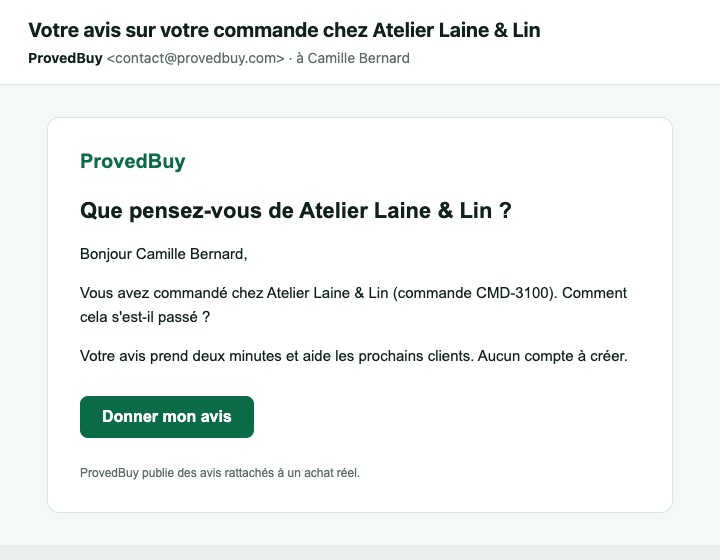
The extension is free. It sends each completed order to ProvedBuy, which invites the customer to leave a review, and it shows the reviews on your store.
- In your ProvedBuy account, on the Settings page, download the WooCommerce extension and create an extension key.
- In WordPress, open Plugins, Add New, then upload the file and activate the extension.
- Open WooCommerce then ProvedBuy, paste the key, save and click Test the connection.
- Tick what you want to show: the stars under the product title, the Verified reviews tab on product pages, the badge at the bottom of the page. Nothing appears on your store until you tick a box.
Add the badge without the extension
The badge code is in your ProvedBuy account, on the "Badge and widgets" page. It holds the badge and a link to your reviews page.
- In WordPress, open Appearance then Editor (or Widgets if your theme does not use the site editor).
- Add a "Custom HTML" block to the footer.
- Paste the code and save.
- To show it on product pages too, add the same block to the "Single Product" template, under the add to cart button.
Code HTML
<iframe src="https://provedbuy.com/encart/your-store.com?lang=en" title="Reviews verified by ProvedBuy" loading="lazy" style="border:0;width:100%;max-width:324px;height:168px"></iframe>
<p style="margin:6px 0 0;font:13px/1.4 system-ui,sans-serif"><a href="https://provedbuy.com/en/reviews/your-store.com" target="_blank" rel="noopener">Reviews verified by ProvedBuy</a></p>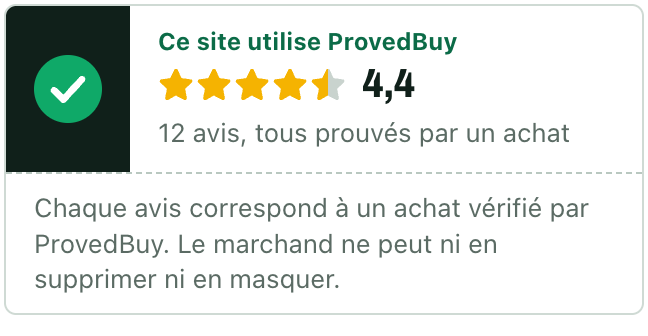
Send your orders without touching code
Export your orders as CSV with the export tool you already use, then keep three columns only: customer name, email address and order number. Import that file on the "Invitations" page of your account. One import takes up to 500 rows.
An order already imported is recognised by its number. You can re-import the whole month every week without inviting anyone twice.
Send every order through the API
The extension is enough in most cases. If you prefer your own code, the Pro plan opens the API: your store passes the order on as soon as payment is confirmed. Add this code to the functions.php file of your child theme or to a small plugin of your own, and define your key in wp-config.php as PROVEDBUY_API_KEY.
Before going live, add 'test' => true to the array you send. Nothing reaches the customer and you receive a preview of the invitation.
Code WooCommerce
add_action('woocommerce_payment_complete', function ($order_id) {
    $order = wc_get_order($order_id);
    wp_remote_post('https://provedbuy.com/api/v1/integration/invitations', [
        'timeout' => 10,
        'headers' => [
            'X-Api-Key' => PROVEDBUY_API_KEY,
            'Content-Type' => 'application/json',
        ],
        'body' => wp_json_encode([
            'items' => [[
                'customerName' => $order->get_billing_first_name() . ' ' . $order->get_billing_last_name(),
                'customerEmail' => $order->get_billing_email(),
                'orderReference' => $order->get_order_number(),
            ]],
        ]),
    ]);
});When the customer gets the invitation
Seven days after the order by default. You can set the delay from 0 to 30 days in your settings. Base it on your delivery times: the customer should have received the parcel and tried the product before being asked.